
The process of gathering valuable information is made simpler with forms. Follow this step-by-step guide to create a form (Product details) using form builder.
Step 1
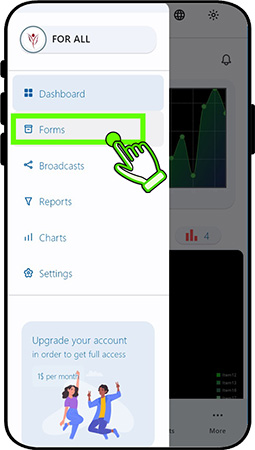

Tap the "Forms" option in sidebar menu.This will open "All forms" page.
Tap the "+" floating action button and Tap "New form" option.This will open "Form builder" page.
Step 2



Step 3
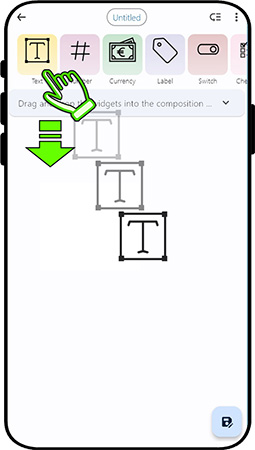
Drag and drop the desired widget("Text" widget to input product name) from the widget panel into the bottom composition pannel. This will open "Add text input widget" dialog.
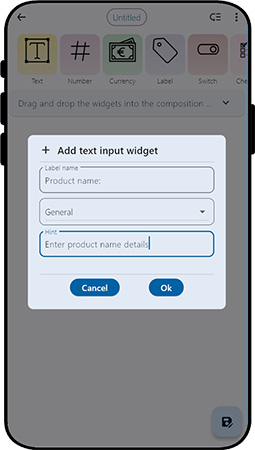
Enter the properties for the "Text" widget and confirm by selecting the "ok" button. Observe the widget's addition to the composition panel.
Step 4
Step 5
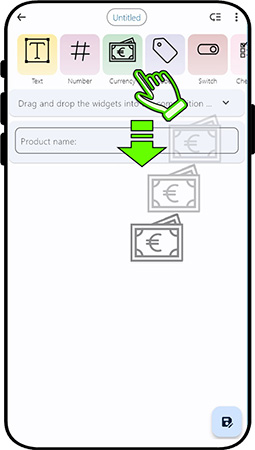
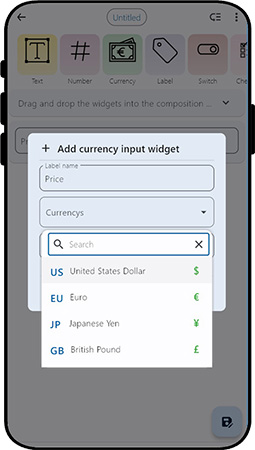
Drag and drop the desired widget("Currency" widget to input product price) from the widget panel into the bottom composition pannel. This will open "Add currency input widget" dialog.
Please enter the properties for the "Currency" widget and confirm by selecting the "ok" button. Observe the widget's addition to the composition panel.
Step 6
Step 7
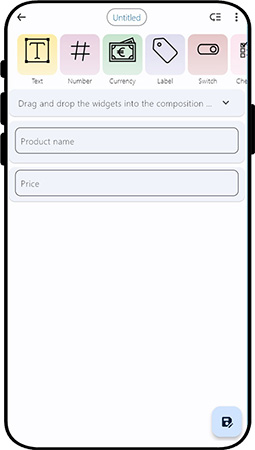
Composition panel now appears with "Text" and "Currency" (Product name and price) widgets.
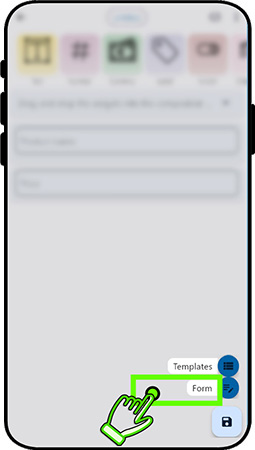
Tap the "Save" floating action button and Tap "Form" option. This will open "Update form properties" dialog.
Step 8
Step 9

Enter the form name and description and confirm by selecting the "ok" button. This will leads "Dashboard" page.
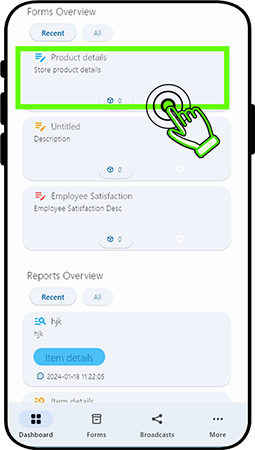
Observe the latest form's addition to the "Form overview" panel in the dashboard page.Double tapping the form(card) will initiate the opening of the form for data entry.
Step 10
Step 11
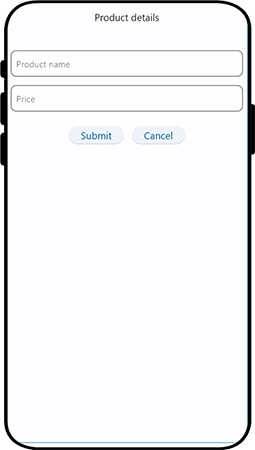

The form is now fully prepared and ready to be utilized.
An impeccable solution for all your form creation needs

Unlock the potential of this versatile technique to create customized forms to perfectly suit your unique requirements. Whether it's order Request,lead generation, customer feedback, event registration, quizzes, surveys, or employee information, the possibilities are vast!