
Discover the ultimate solution for making sense of your datasets - queries. With Query Builder, you can effortlessly harness the data collected through forms and transform it into meaningful insights. Seamlessly create dynamic queries that lay the foundation for stunning charts and data visualizations.
Step 1
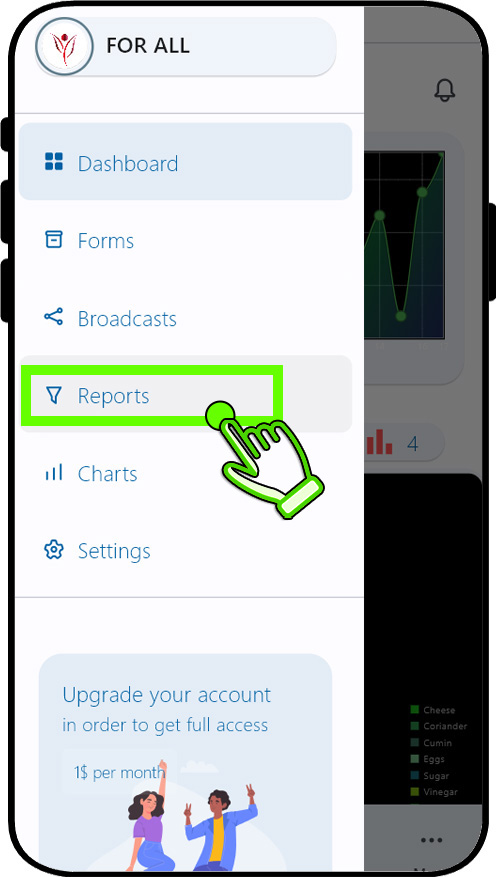

Tap the "Report" option in sidebar menu.This will open "All reports" page.
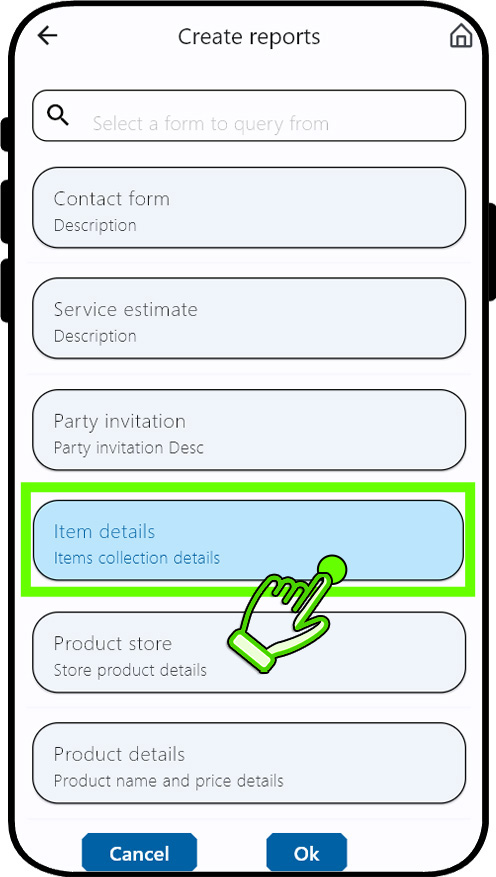
Select a form from the list and tap "OK" button to query.This will open "Report builder" page.
Step 2


Step 3
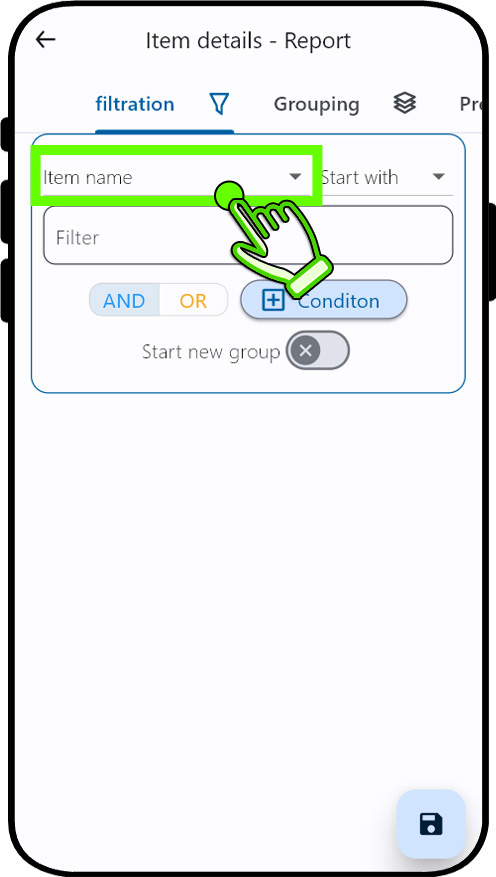
To set the filter, tap the field drop-down list. (For unfiltered results leave the filter empty and Tap "preview" tab)
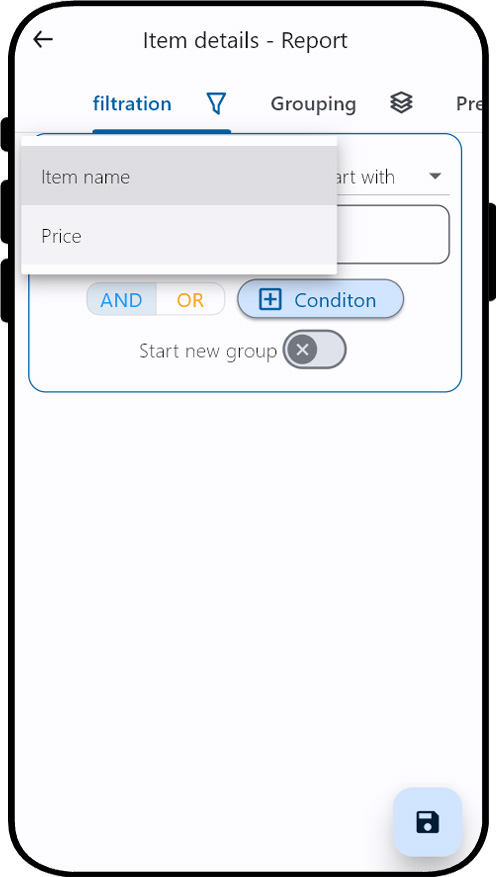
Select the field for which the filter should be configured from the Field drop-down list.
Step 4
Step 5
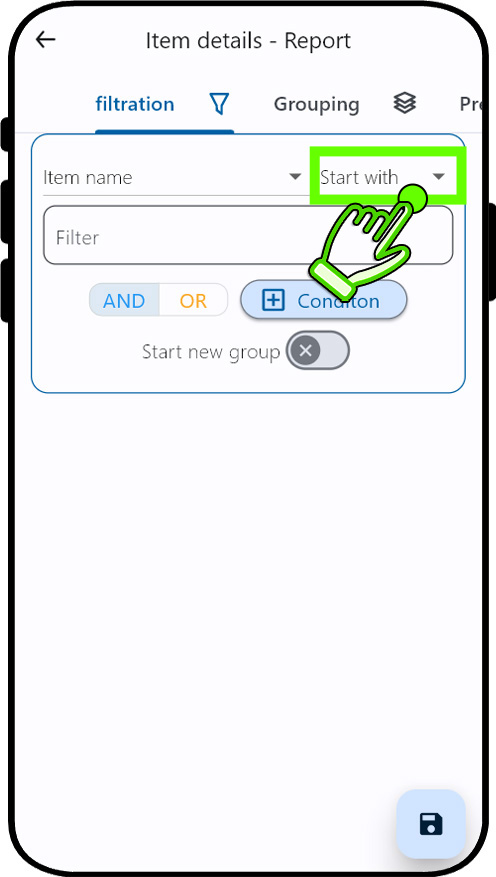
To set the filter condition, tap the condition list.
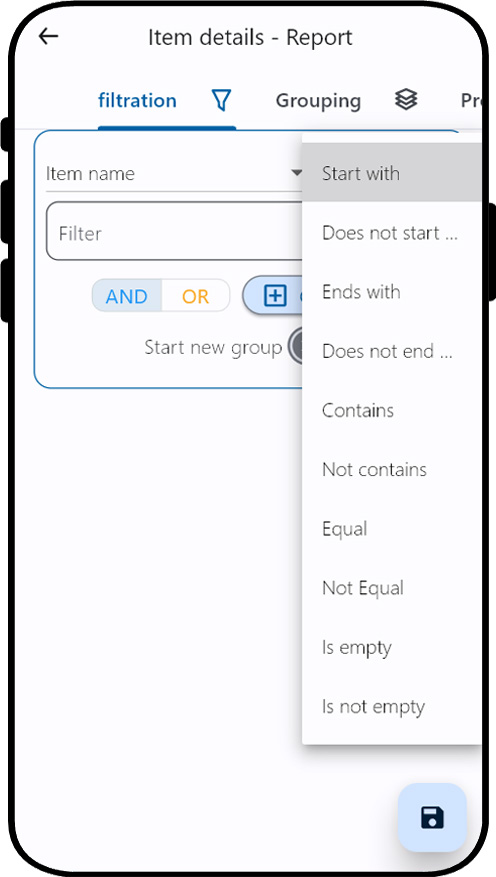
Select the condition for which the filter should be configured from the condition drop-down list. if the condition requires input,Enter the text in the filter input box.
Step 6
Step 7
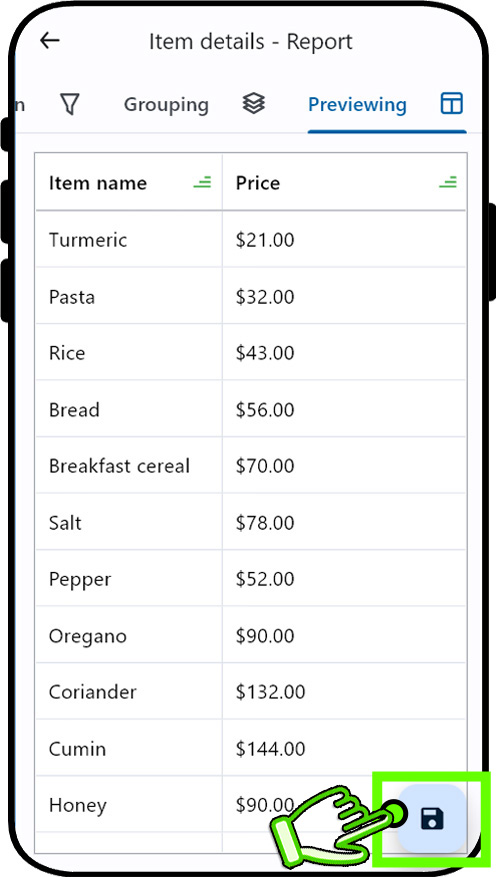
See the results(limited to 25 records) from the preview tab, Tap "Save" floating action button to save the report.
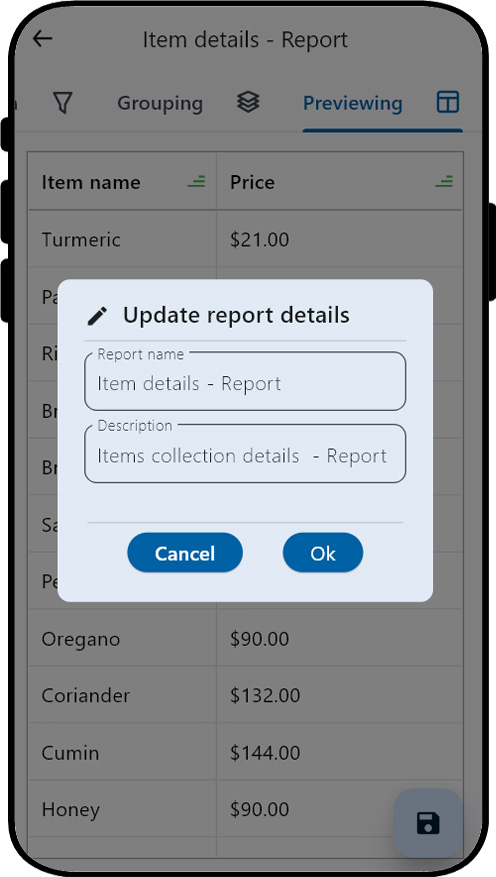
Enter the report name and description and confirm by selecting the "ok" button. This will leads "Dashboard" page.
Step 8
Step 9
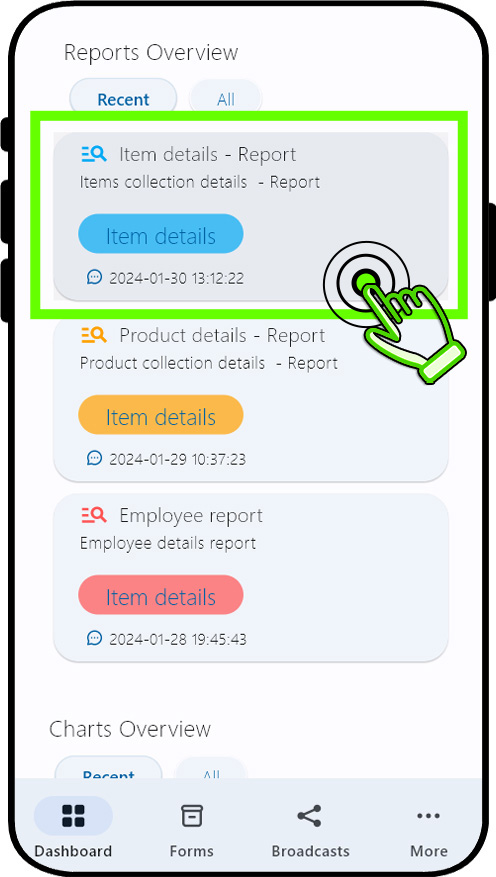
Observe the latest report's addition to the "Report overview" panel in the dashboard page.Double tapping the Report(card) will initiate the opening of the full screen Report.
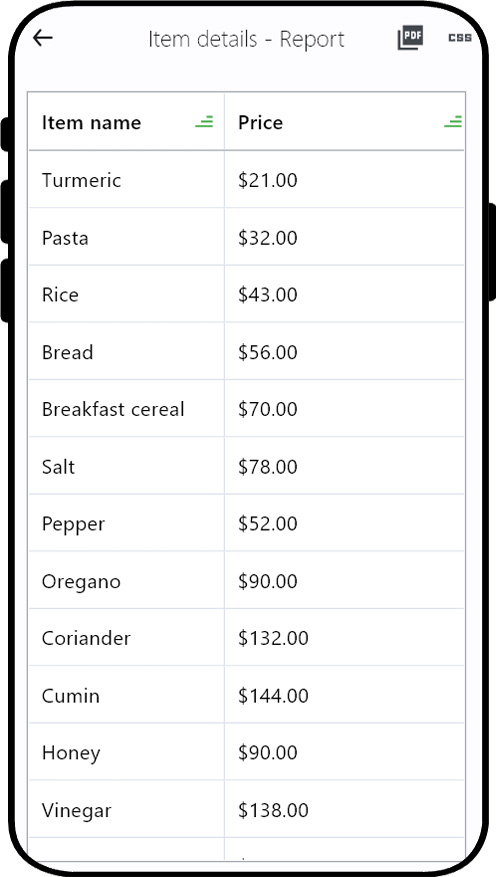
Full set of filtered records can be viewed in this page. Report results can be exported as "pdf" or "CSV"(Comma separated values) files.
Step 10
Shape your data filtering exactly the way you desire
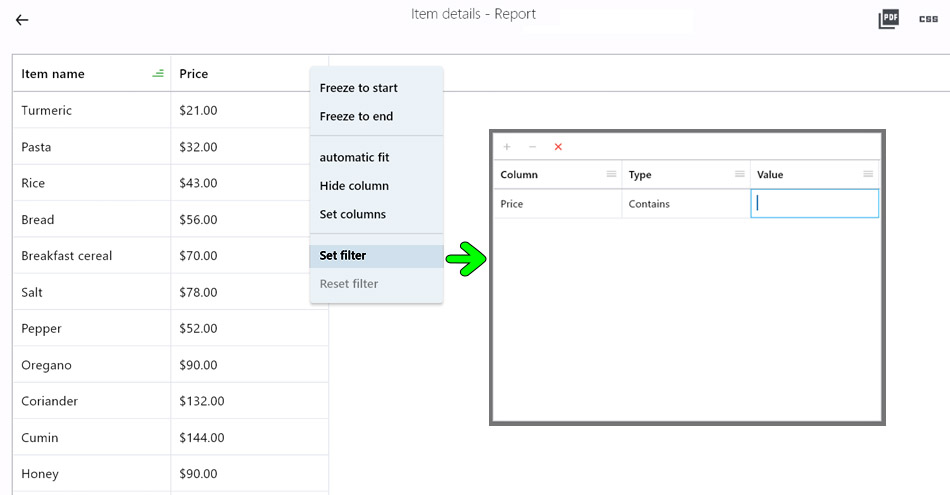
Unleash the power of Query Builder to effortlessly craft intricate and dynamic queries, all without the need
for coding.